Bookmark the Portal login page in Internet Explorer so you can quickly access
your portal.
Once you login, you’ll be directed to your personal portal home page. Your Login ID is your email address. Your password is case sensitive and must contain an upper case, lower case, number and special character. If you do not remember your password click on the ‘Forgot your password?’ link and reset your password. We do not have access to your password.
To get basic portal instruction, click on the Getting Started bar on the left side of your monitor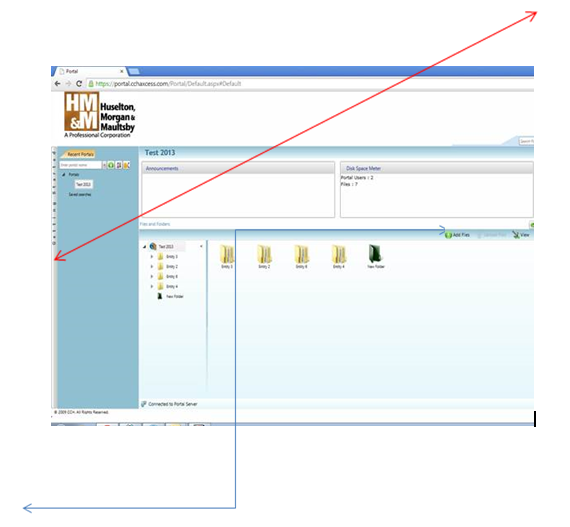
Adding Files
You can add a file to a portal by dragging the file to the Files and Folders section of the Portal home page. You can also upload a file by clicking the Add Files button. In either case, you must click the Upload Files button to complete the upload process.
1. In the Files and Folders section, select the folder where the files should be uploaded.
2. Do one of the following to select the files for upload:
a) Select files to upload using the Add Files button.
b) Drag the files for upload from your computer to the Files and Folders section of the home page.
c) The selected files are added to the Files and Folders area, but have a pending status, as indicated by their lighter color. Files that are pending are not yet available for other users to access. If you exit the portal before completing the upload, pending files are removed from the files and folders area.
3. Click Upload Files. When the upload process is completed, the Status column in the Detail view displays information about the success or failure of the upload.
4. To remove information about previous uploads, including failed uploads, click Clear Completed in the File Upload Progress pane.
Downloading Files
You can download selected files from Portal to your local computer.
To download files, do the following:
1. After logging in to your portal, select the Recent Portals tab of the navigation panel.
2. Select a portal name from the list of available choices.
3. Right-click a file in the Files and Folders box.
4. Click browse to find a location to save the file.
Click the Refresh button above the Files and Folders section to get updated information about files on a portal. Do not use the Refresh button on your browser.
If you have any questions please feel free to give us a call!
-Huselton, Morgan & Maultsby, P.C.
972-404-1010